SETUP GUIDE
How to Set Up Yeah IPTV on Fire TV Stick
Step-by-step guide to install and watch Yeah IPTV on Amazon Fire TV Stick. Works with all Fire Stick models.
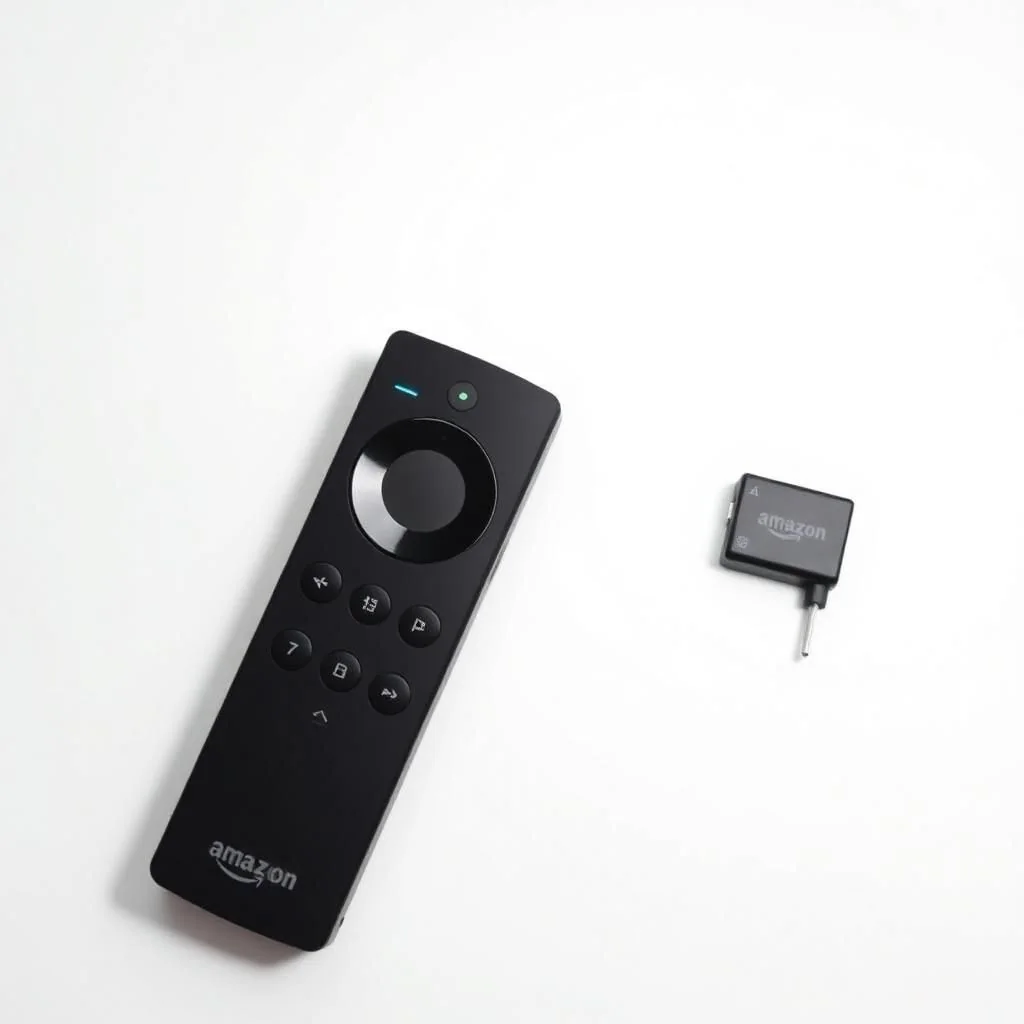
Setting Up Yeah IPTV on Amazon Fire TV Stick
Yeah IPTV works perfectly on Amazon Fire TV Stick, giving you access to 24,000+ live channels in HD and 4K directly on your television.
What You Need
- Amazon Fire TV Stick (any model — Fire Stick 4K, Fire Stick 4K Max, or basic Fire Stick)
- Active Yeah IPTV subscription (start your free trial)
- Your Wi-Fi connection
Step 1 — Open the Yeah IPTV App
From your Fire TV home screen, press the Home button and navigate to the search icon. Search for “Yeah IPTV” and select it from the results.
Step 2 — Download the App
Click Download or Get on the Yeah IPTV app page. The app will install automatically in under 60 seconds.
Step 3 — Sign In to Yeah IPTV
Open the Yeah IPTV app. Enter your username and password from your subscription confirmation email. Tap Sign In.
Step 4 — Start Watching
Browse 24,000+ live channels by category — Sports, Movies, News, Entertainment, Kids, and more. Tap any channel to start streaming instantly.
Using with Player Apps
You can also use Yeah IPTV on Fire TV Stick with popular player apps like TiviMate. Enter your Yeah IPTV M3U playlist URL and EPG URL from your account dashboard.
Troubleshooting
- Buffering issues: Go to Settings and check your Wi-Fi signal strength. A 25+ Mbps connection is recommended for 4K.
- App not found: Enable “Apps from Unknown Sources” in Settings if using a third-party player.
- Login problems: Double-check your credentials or contact our support team.
Ready to Watch?
Start your Yeah IPTV free trial and get instant access to 24,000+ live channels.